Booking a move in MoveRight takes the signed estimate and deposits and turns them into a scheduled job — complete with crew assignment, truck assignment, and automatic customer confirmation.
Prerequisites
Before scheduling a move, it’s good practice to have a signed estimate and a collected deposit. If these steps are part of your workflow, confirm they’re done before booking.
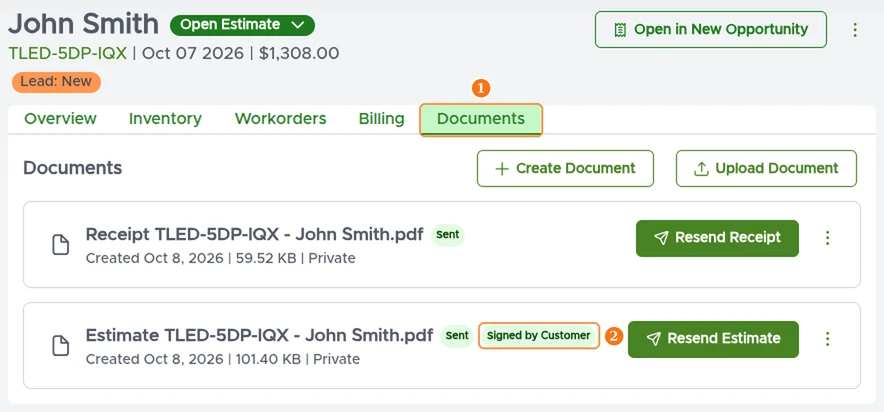
Signed estimate — open the job’s Documents tab (1) and check that the estimate is marked Signed by Customer (2). See How to Sign an Estimate.
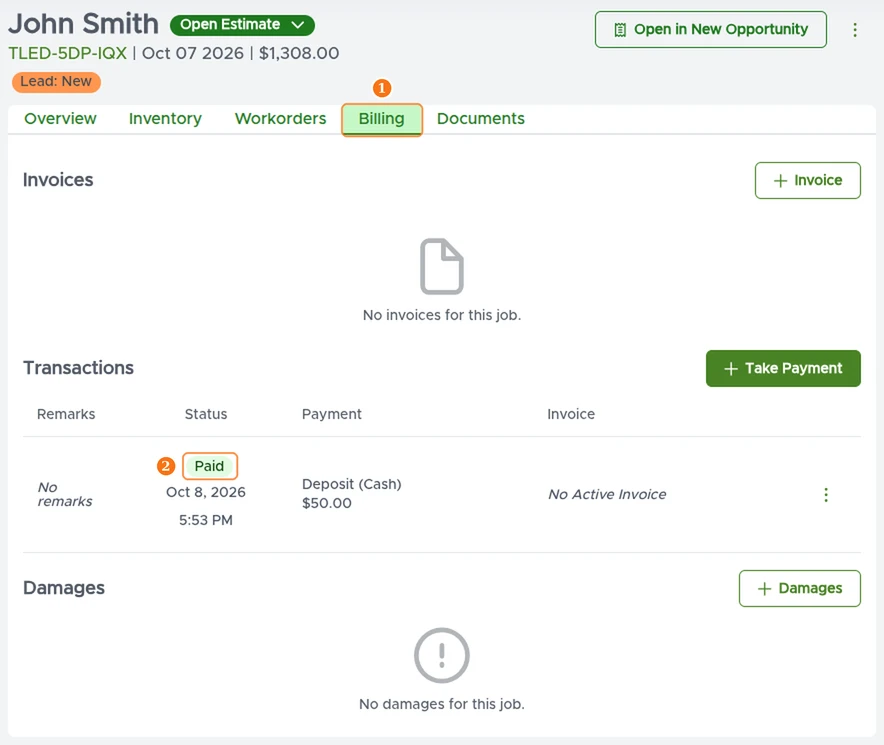
Deposit collected — open the Billing tab (1) and check that the deposit transaction shows as Paid (2). See How to Record a Deposit.
Pro tip: Neither a signed estimate nor a deposit is required in MoveRight. If your workflow doesn’t include them, you can go straight to booking the move.
Steps
1. Open the Job Page and Go to Booking
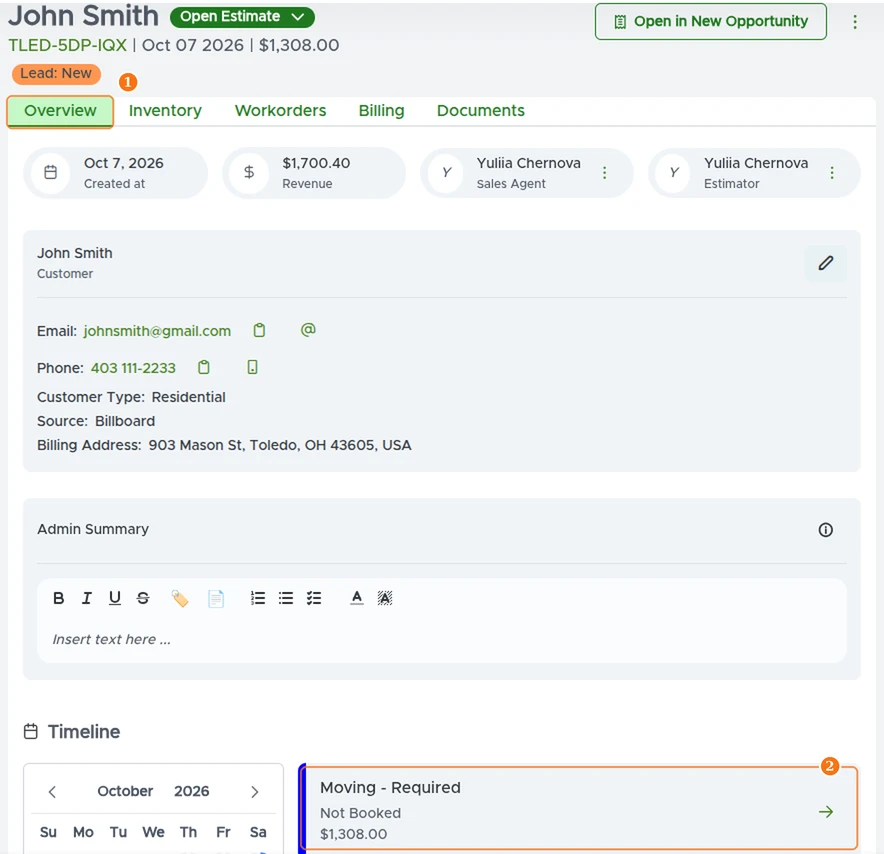
Open the job page and stay on the Overview tab (1). In the Timeline section, find the Moving event and click the arrow button on it (2).
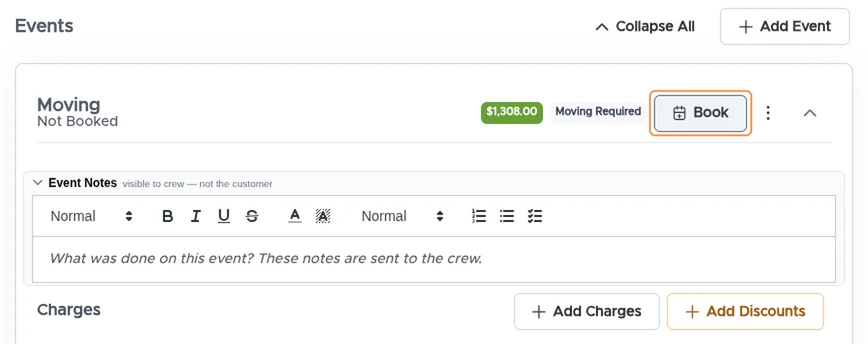
You’ll be taken to the Workorders tab, opened on that moving event. Click Book to open the booking window.
2. Choose a Start Time and Truck
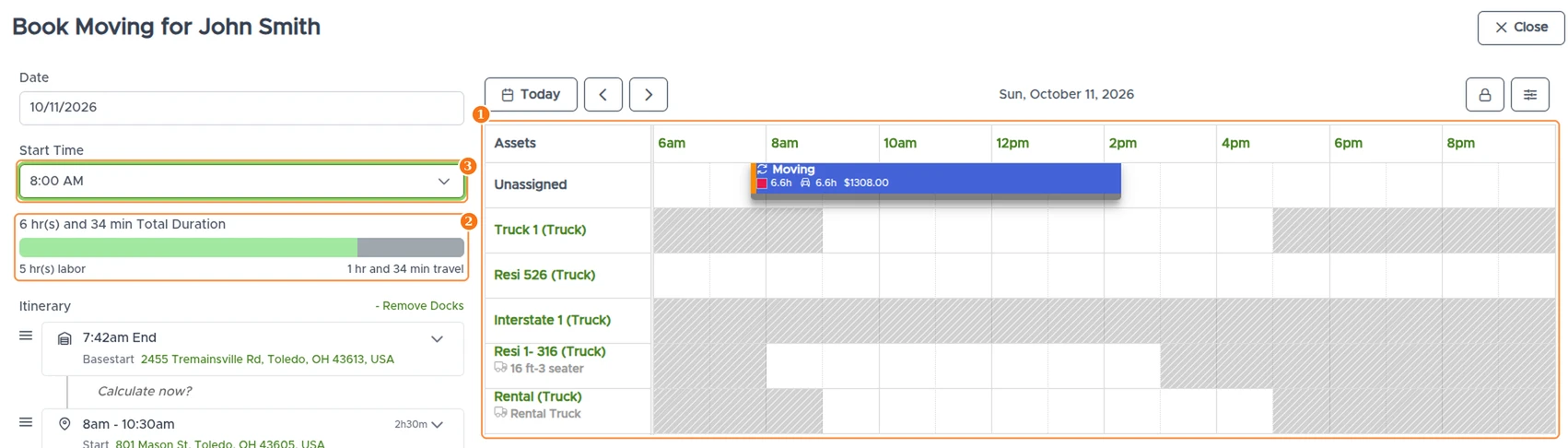
The booking window shows your schedule for the selected day — truck availability and other events already booked (1). You can also review the move’s total duration, broken down into labor hours and travel time (2).
Select a Start Time (3), and the schedule will show which trucks are available at that time.
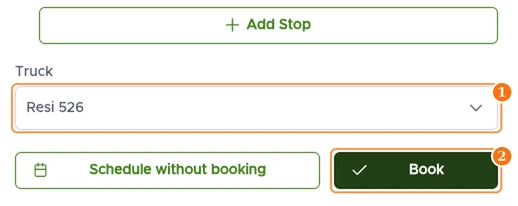
Select an available Truck (1) and click Book (2).
Once the move is booked, MoveRight automatically sends the customer a booking confirmation email.
Track Booked Moves on the Schedule
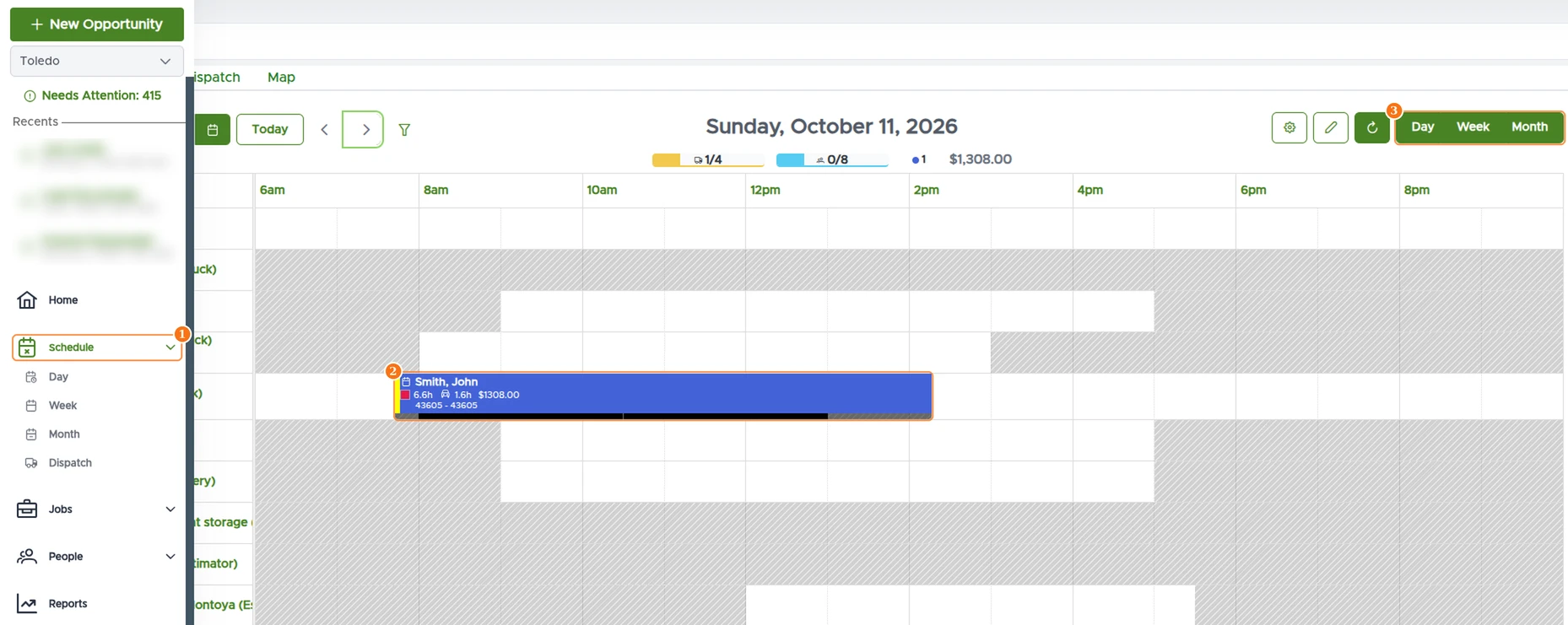
Once booked, the move appears on your schedule. To see it, open Schedule from the left menu (1). Your booked move shows up on the schedule (2), and you can switch between Day, Week, and Month views (3) to see everything planned at a glance.