Collecting a deposit after estimate signing secures the booking and reduces no-shows. MoveRight lets you record deposit payments and automatically applies them to the final invoice.
Why Deposits Matter
Moves without deposits have significantly higher no-show and last-minute cancellation rates. A deposit creates a financial commitment from the customer and a scheduling commitment from you. Most operators collect 10–20% of the estimated job value as a deposit.
How to Record a Deposit
1. Open the Job
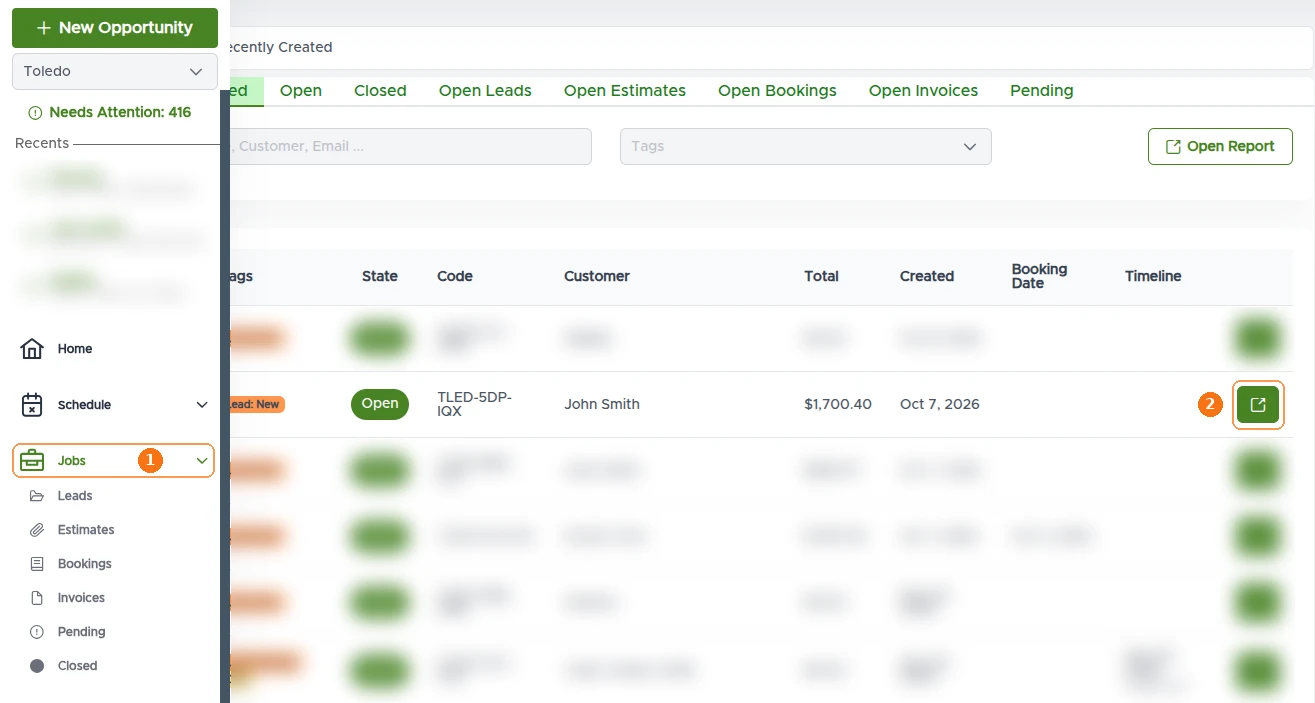
In the left menu, click Jobs (1), locate your job in the list, and click the green open button at the end of its row (2) to open the job page.
2. Take the Deposit
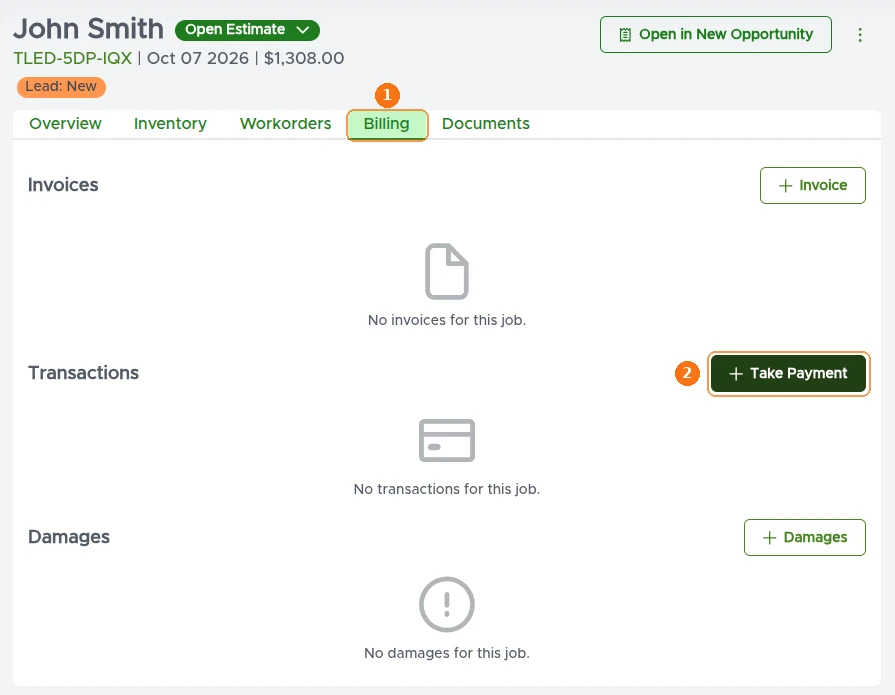
On the job page, open the Billing tab (1). In the Transactions section, click + Take Payment (2).
3. Record the Transaction
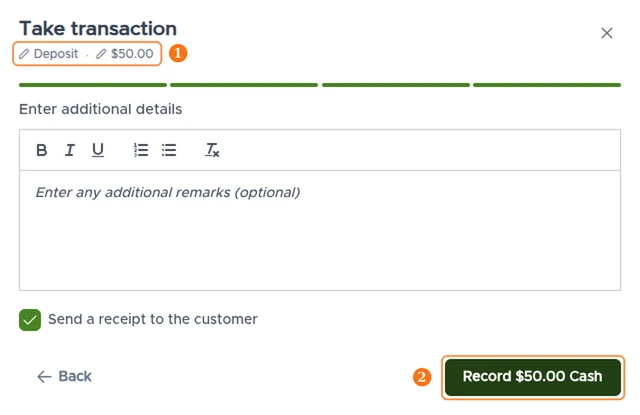
Enter the transaction amount and select the payment type — your selections are shown at the top of the window (1). Optionally add remarks and choose whether to send the customer a receipt, then click Record (2) to record the transaction in MoveRight.
Note: By default, MoveRight isn’t connected to a payment processor. Payments are collected outside the system and recorded manually here. To process payments directly in MoveRight, see Stripe and Square Payment Setup or learn about BlueSage payment processing.
Deposit Applied to Invoice
When you create the final invoice after the move, MoveRight automatically pre-fills the “Deposit Applied” field with the recorded amount. The customer’s balance due reflects the deposit credit.
Refund Policies
MoveRight stores deposit records with timestamps. If your cancellation policy allows for partial or full refunds within a certain window, note your refund terms in the estimate cover message so there’s a documented expectation from the start.
Next Step
The next step is booking the move — see How to Book a Move.
Pro tip: Recording a deposit is optional in MoveRight. If your workflow doesn’t include deposits, you can go straight to booking the move at any time.