Before you can send an estimate, it needs to be built in MoveRight first — see How to Create a New Opportunity. Once you’ve created a new opportunity and clicked Done, you’ll be redirected to the job page.
1. Create the Estimate Document
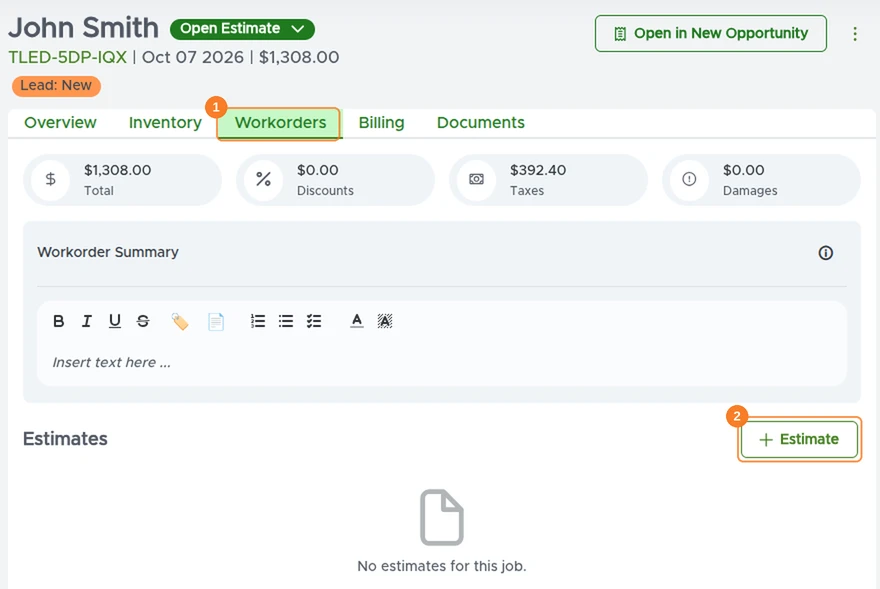
On the job page, go to the Workorders tab (1) and click + Estimate (2). MoveRight creates the estimate document, which you can review and then send to the customer.
2. Review and Send
The Create Document window opens with a preview of the estimate exactly as the customer will see it. Choose which events to include, add an optional Message to the customer — it’s added to the email that sends the estimate — and click Send Estimate.
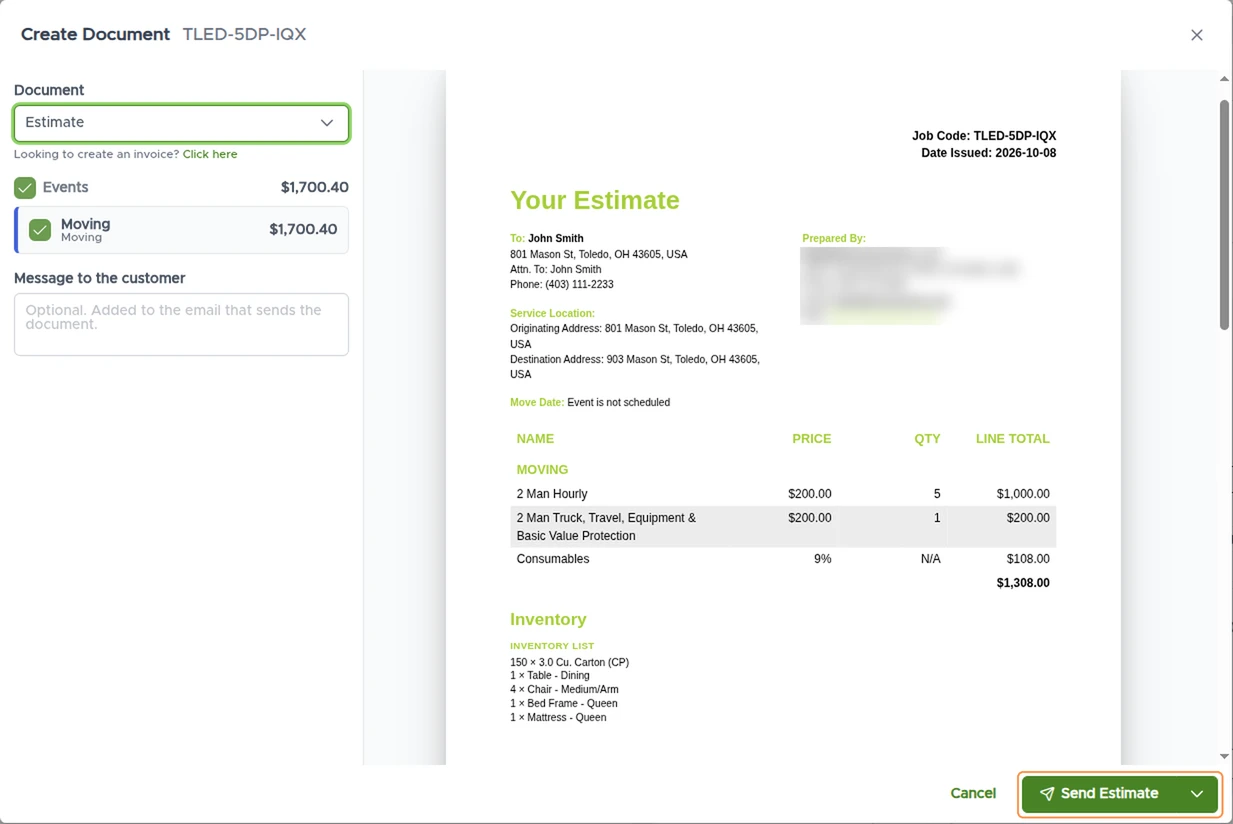
The customer receives the estimate by email and SMS.*
* Sending SMS from MoveRight requires a phone system to be set up. You can find more about the phone systems MoveRight integrates with in the dialer comparison.
Next Steps
Once the customer accepts the estimate, they sign it online. MoveRight can notify you as soon as the estimate is signed.
After the estimate is signed, the next steps are:
- Collect the deposit — see How to Record a Deposit for an Estimate.
- Book the move to place it on the schedule — see How to Book a Move.