Every job in MoveRight starts as an opportunity. Enter the move details, and the built-in calculator builds the estimate in one click.
Steps
1. Open New Opportunity
Click + New Opportunity in the left sidebar.
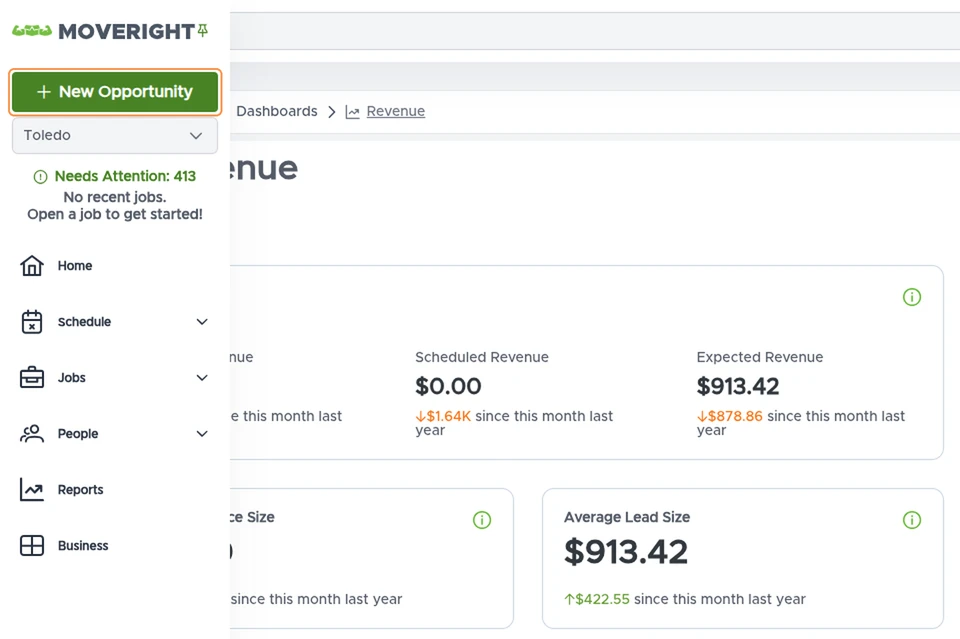
Tip: New Opportunity keeps your changes until you save them, so you can start an opportunity, leave, and come back to finish it at any time — right where you left off.
2. Customer Details
Fill in who the customer is and how they found you.
Only the customer’s name is required to create a lead. All other information can be left out if the customer hasn’t provided it — you can add it later.
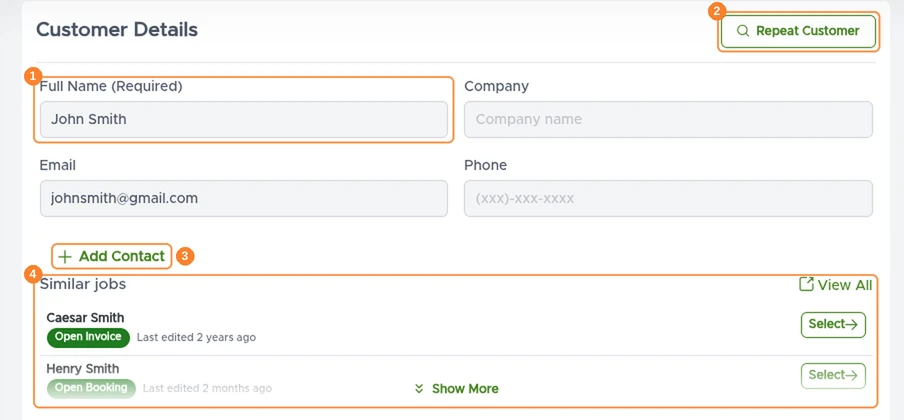
Contact information
Only Full Name ① is required. Add the customer’s Email and Phone if you have them, and a Company name for commercial clients.
Use + Add Contact ③ to add another person involved in the move (a spouse, office manager, or realtor). MoveRight sends all communication to both the main customer and every additional contact.
Returning customers and duplicates
If you have a lot of regular customers, Similar jobs ④ and Repeat Customer ② help keep your records organized — as you type, MoveRight suggests matching customers and jobs so you can reuse an existing customer instead of creating a duplicate.
Timeline
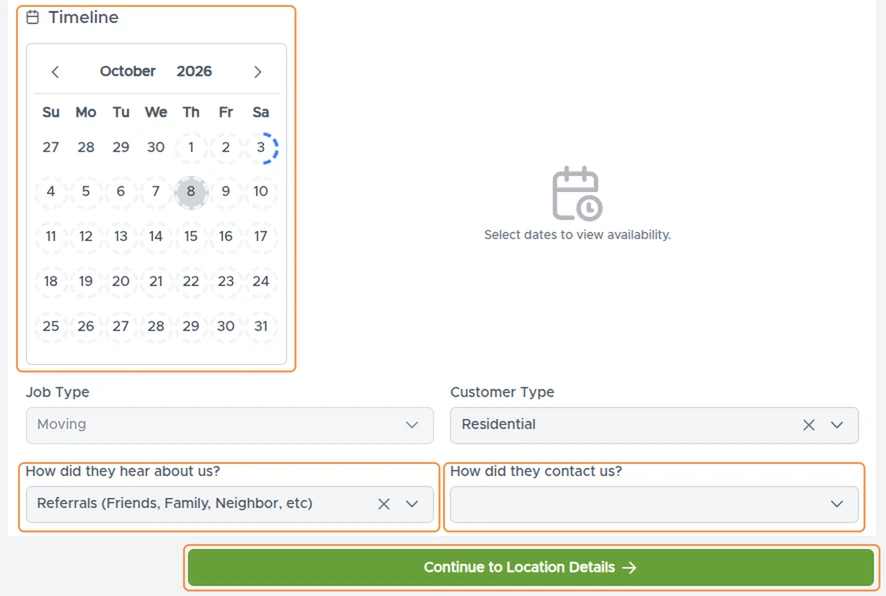
Click a date — or a start and end date for a multi-day move — on the calendar.
The timeline is the time when the customer is looking to move. It is not a booked date: adding a timeline does not put the move on the schedule. To get the move on the schedule, you need to book it — see How to Book a Move.
Job details
Fill in How did they hear about us? and How did they contact us? — they help you track your lead sources and see which ones bring results. Both lists are fully configurable, so you can add new options as your business needs them.
Use the Continue to… and Previous Step buttons at the bottom of the screen to move between the steps of the opportunity form.
3. Location Details
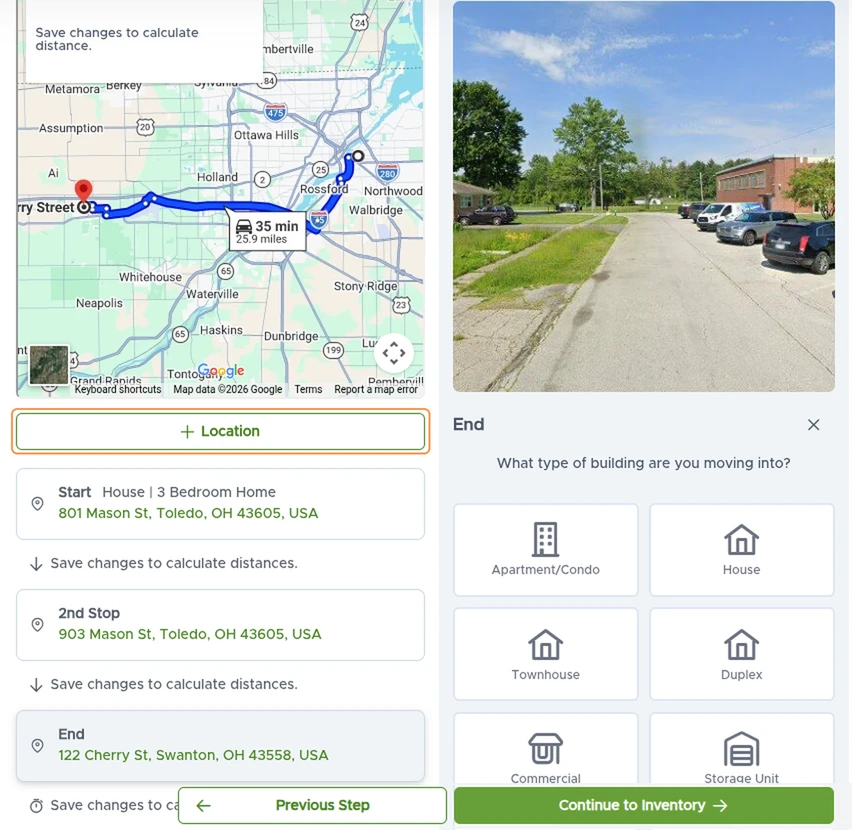
Add the start and end locations. Fill in each location’s details as exactly as possible — building type, size, access, floor, elevator, and any access notes. This information is what lets MoveRight build a precise estimate in one click (see How to Send an Estimate). If the move has additional stops, use + Location to add a 2nd Stop, 3rd Stop, Storage, Office, or Other location.
As soon as you enter the addresses, MoveRight shows the route on a map with the travel time and distance between locations, along with a street view of each address.
4. Inventory
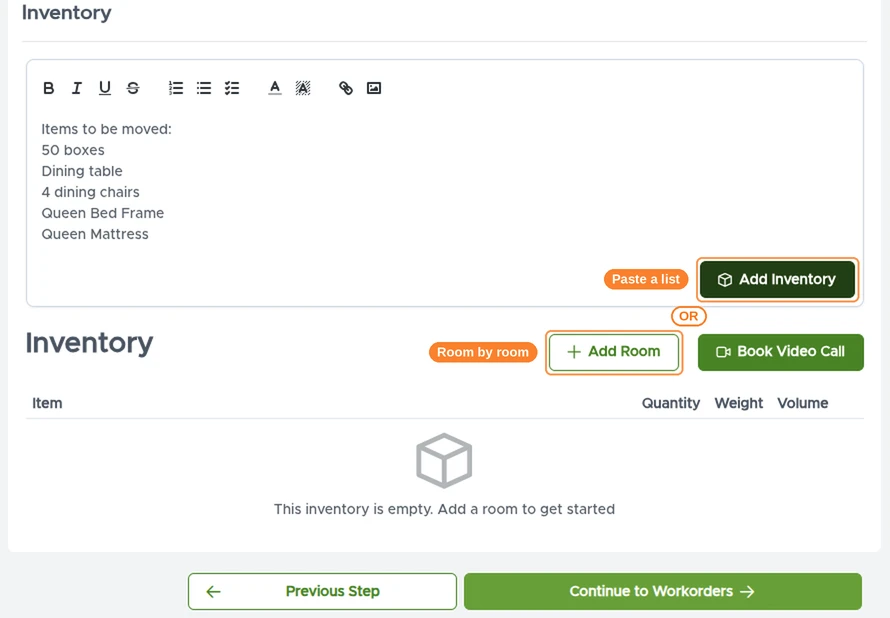
Add the items being moved in whichever way is faster for you:
- Room by room — click Add Room, then pick items from the standard inventory list already loaded in the system and set the Quantity. Weight and volume are filled in automatically.
- Paste a list — type or paste the inventory in any format (for example “queen bed, 2 dressers, sectional sofa, 30 boxes”) and click Add Inventory. AI reads the list and adds the items for you.
If your company uses Yembo or Qube Sheets, you can also book a smart consult or video call from this step.
5. Build an Estimate
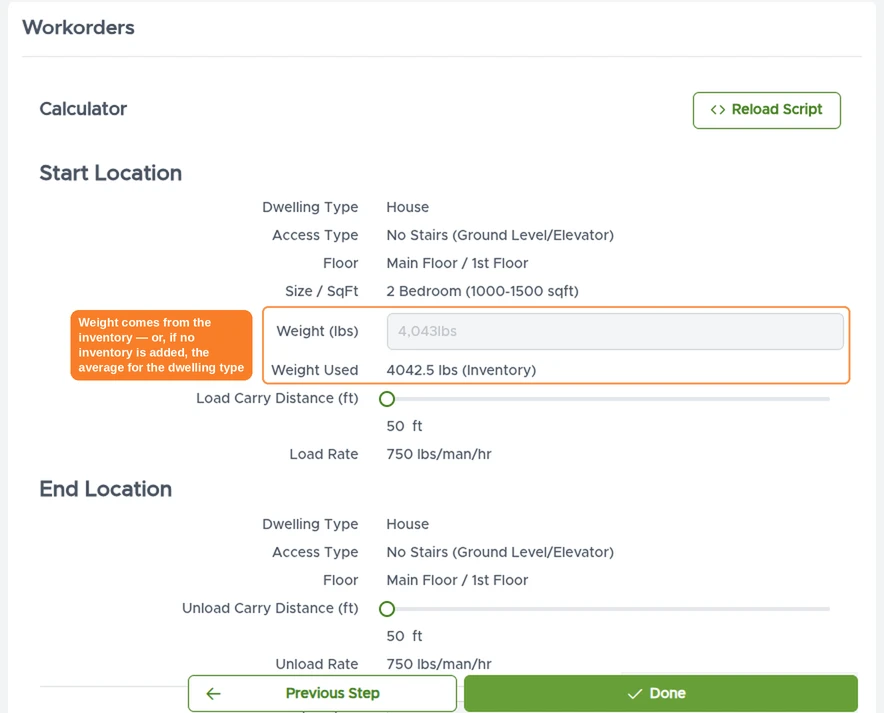
The built-in calculator uses the inventory and location details you entered to work out the move for you. The calculator is flexible: the MoveRight team can set it up to match the way you charge your customers.
The move weight is taken from the inventory you added. If no inventory is provided, the calculator uses the average weight for that dwelling type, based on move statistics.
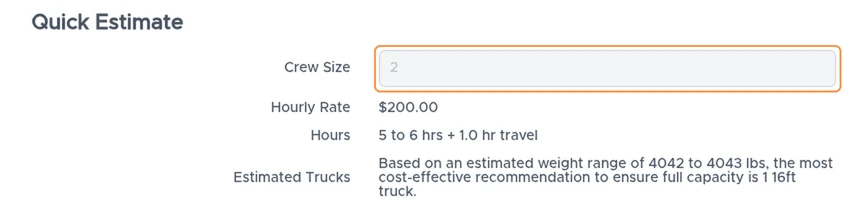
In the Quick Estimate section, the calculator:
- Finds the optimal crew size for the move.
- Estimates the labour hours, with travel time included.
- Suggests a truck, picking the most cost-effective size for the estimated weight.
If needed, you can adjust the Crew Size manually.
Click Create Estimate Charges to build the estimate for the customer.
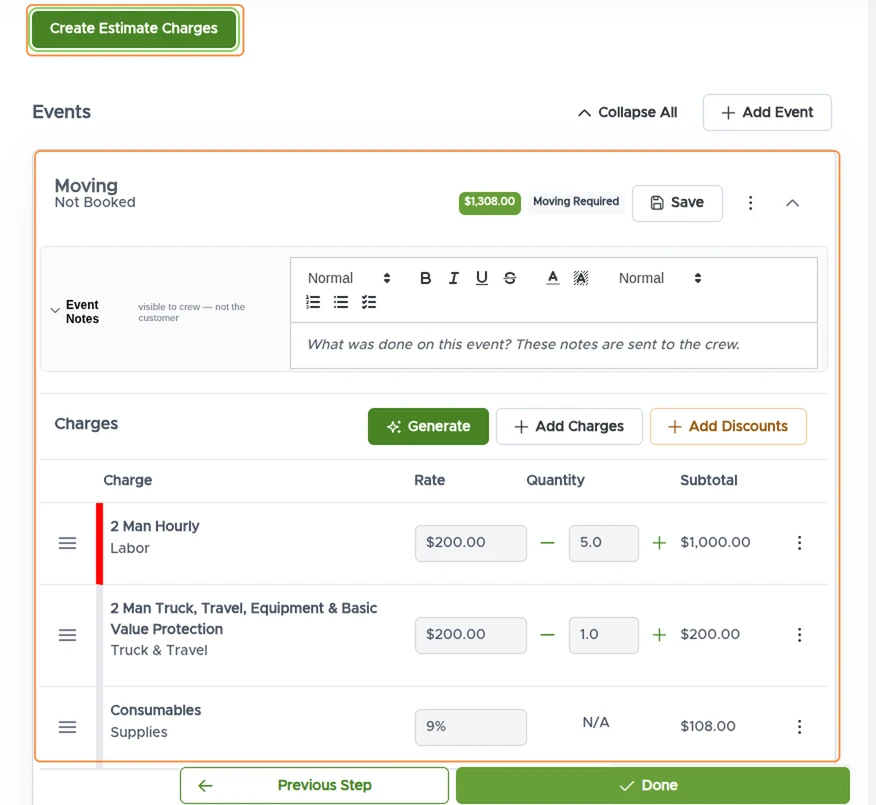
Your estimate is now built in MoveRight. Click Done to save it. The next step is sending the estimate to the customer — see How to Send an Estimate.